Ask David: What multifactor authentication (MFA) options are available for my NorthstarMLS login?
NorthstarMLS uses multifactor authentication (MFA) to add an extra layer of security to your account, requiring verification every 30 days per device or when you sign in from a new one. You can choose from several MFA options and manage or update them anytime in your Account Settings to ensure uninterrupted access.
January 23, 2026
NorthstarMLS uses multifactor authentication (MFA) to help protect your account. MFA must be completed once every 30 days, per device, when logging in from a new device or when using a different browser.
You may be asked to complete MFA again if any of the following occur:
- Different Device: Logging in from a new or different device (for example, your home computer versus your work laptop) will prompt MFA again.
- Different Browser: Logging in with a different browser than the one previously used will trigger MFA.
- Combination of New Device and Incognito Mode: This combination will trigger MFA, because there are no stored cookies and you are using a new device.
- Expired MFA Cookie: Once the configured cookie period (30 days) expires, you’ll be prompted for MFA again.
After entering your password, you’ll verify your identity using one of the MFA options you’ve set up in your account.
Available MFA Options:
Text / SMS Code
A one-time, 6-digit code is sent to your mobile phone via text message. Enter the code to complete your login.
Email Code
A verification code is sent to your primary email address on file. This can be used as a primary or backup option.
Passkey
Passkeys provide a secure, phishing-resistant way to log in without entering a code. NorthstarMLS supports:
- Passkeys saved on your computer (Windows or Mac)
- Passkeys stored on your mobile device using Face ID, Touch ID or a device PIN
- Physical security keys (USB-based)
You can set up multiple MFA options, which is strongly recommended so you can still log in if one method isn’t available.
For more details on how MFA works, when you’ll be prompted and how to manage your authentication settings, see our full article, Protect Your MLS Account with Multifactor Authentication.
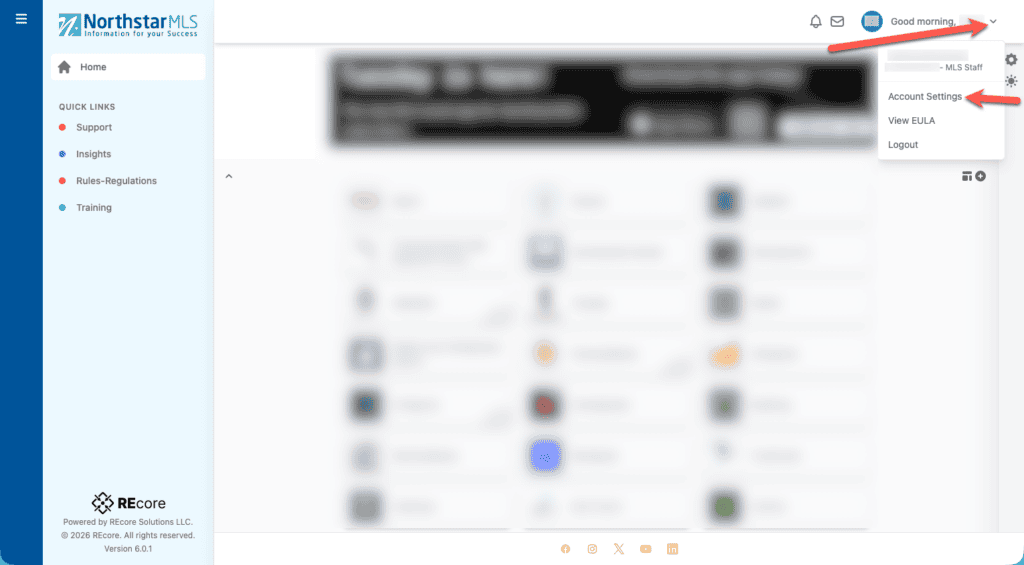
To manage your MFA options from the NorthstarMLS Dashboard, click on the dropdown next to your name in the upper right corner and select “Account Settings”:
Then, choose “Manage Authentications.”
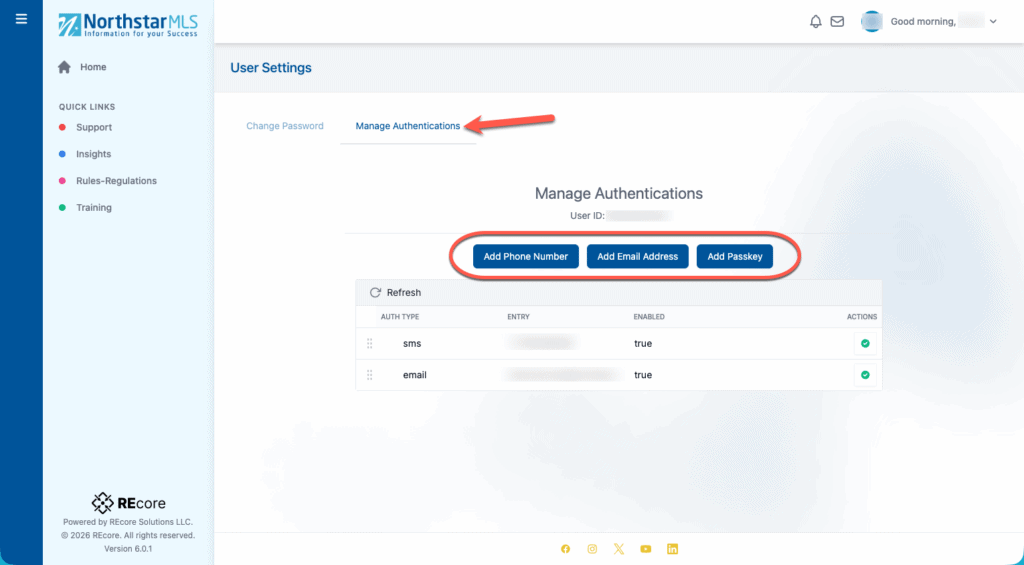
Here you can review the three MFA options and make any necessary adjustments.
Need Help?
For questions, contact the NorthstarMLS Help Desk at help@northstarmls.com or call 651-251-5456. For MLS compliance, contact the Rules and Regulations department at rules@northstarmls.com or call 651-251-3210.

Explore More

Share This Article
Related Insights
Stay up-to-date on the latest information from NorthstarMLS. From Subscriber Benefits to industry news, our articles have insights and analysis to help expand your real estate knowledge.
Ask David: Why does the map pin matter if the address is correct on my listing?
A misplaced map pin can keep an otherwise perfect listing from appearing in map-based searches, costing valuable visibility with agents…
NorthstarMLS Invests in Next-Generation Consumer Home Search with Broker Public Portal
NorthstarMLS has partnered with Broker Public Portal to launch a next-generation home search platform focused on accurate MLS data, transparency…
You Said. We Did. Improvements in Matrix
At NorthstarMLS, your feedback directly shapes how we improve the tools you rely on every day. We’ve been listening closely,…