Ask David: What are the And/Or/Not options in Matrix search fields?
Matrix allows users to search for listings using a robust list of search fields. This is how to use the And/Or/Not tools correctly.
March 20, 2026
Matrix is used by many NorthstarMLS subscribers and is proven to be a substantial and important tool for real estate businesses. Matrix allows users to search for listings using a robust list of Real Estate Standards Organization (RESO) search fields. Because some of these fields have the option to make several selections for your search, there are added features to make sure the results are just right.
Searching: And/Or/Not Radio Buttons
Under some search fields in Matrix, you will see radio buttons for And/Or/Not. Let’s dive into what each selection will do to your search results.
AND, OR and NOT are Boolean operators, or more simply put, logical terms commonly used in databases like Matrix to improve the relevance of results. They are used to narrow or broaden search results by defining the relationship between keywords.
And
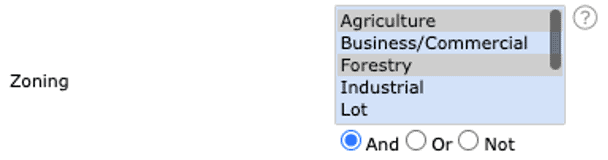
Selecting “And” means that if you have more than one selection chosen in that search field, the listing results will have to include all those selections.
Take the Zoning Search Field for example: If I have both Agriculture and Forestry selected with the “And” radio button, all search results will have Agriculture AND Forestry as part of their criteria.
Or
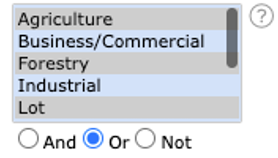
Selecting “Or” means that if you have more than one selection chosen in that search field, the listing results will include one or any combination of those selections.
Back to the Zoning Search Field example: If I have Agriculture, Forestry and Lot selected with the “Or” radio button, my search results will have Agriculture, Forestry, Lot or any combination of these three selections as part of their criteria.
Not
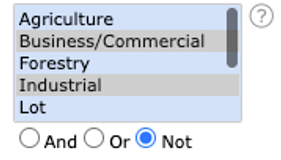
Selecting “Not” means that if you have one or more selections chosen in that search field, the listing results will exclude those selections.
Using the Zoning Search Field example again: If I have Business/Commercial and Industrial selected with the “Not” radio button, my search results will exclude any listings with these selections as part of their criteria.
Searching: Status Checkboxes
Within some search fields in Matrix, you will see checkboxes. These checkboxes are multifunctional. Let’s dive into what each selection will do to your search results.
Green Checks
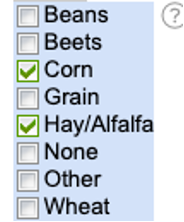
Making selections using the green checks means your search results will include that criteria.
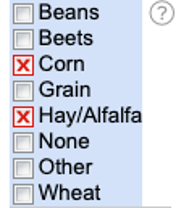
Take the Crops Search Field as an example: If Corn and Hay/Alfalfa have green check marks, the search results will include both selections and function the same as the AND radio button.
Red Xs
Making selections using the red Xs means your search results will exclude that criteria. To get the red X, you will click on the checkbox twice.
Crops Search Field Example: If Corn and Hay/Alfalfa have red Xs, the search results will exclude both selections. This functions the same as making multiple selections and using the “Not” radio button.
Searching: Status Checkboxes with And/Not
Lastly, some search fields use a combination of the status checkboxes along with the And/Or radio buttons.
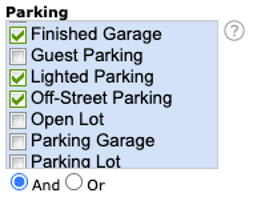
Green Checks + And
This means the search results will include results from all selected categories.
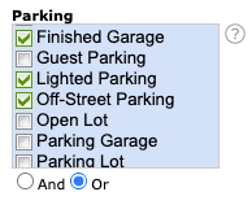
Green Checks + Or
This means the search results will include one or any combination of the selected categories.
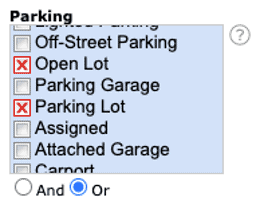
Red Xs + And
This means the search results will exclude all selected categories.
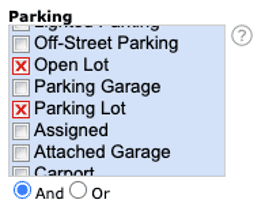
Red Xs + Or
This means the search results will exclude one or any combination of the selected categories.
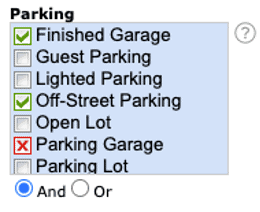
Green Checks + Red Xs + And
This means the search results will be inclusive of all selected categories.
Parking Search Field Example: The search results produced will have a Finished Garage and Off-Street Parking but will not include Parking Garages.
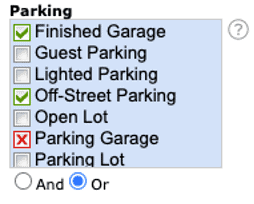
Green Checks + Red Xs + Or
This means the search results will include one or any combination of the selections chosen.
Parking Search Field Example: The search results produced may have a Finished Garage, have Off-Street Parking or will not have a Parking Garage or any combination of these three.
Always be aware of the search fields you are using and what selections you have made. If you are not seeing results, try adjusting the search field selections and pay attention if And/Or/Not are chosen or if you have any status checkboxes marked. The more criteria and search fields that are used, the narrower the results will be. If you are struggling to produce results, start removing some of your criteria to make the search broader.
Need Help?
For questions, contact the NorthstarMLS Help Desk at help@northstarmls.com or call 651-251-5456. For MLS compliance, contact the Rules and Regulations department at rules@northstarmls.com or call 651-251-3210.

Explore More

Share This Article
Related Insights
Stay up-to-date on the latest information from NorthstarMLS. From Subscriber Benefits to industry news, our articles have insights and analysis to help expand your real estate knowledge.
NorthstarMLS Newsletters: Read our Latest Editions and Past Issues
Helpful updates and information and the latest MLS product news for your real estate business
Making Compliance Clear, Consistent, and Easy to Navigate
NorthstarMLS has improved the way we communicate compliance issues so you can quickly understand what’s needed and how to resolve…
2025 NorthstarMLS Subscriber Survey: You Said. We Did.